
Video playback interface
Next, we will explain the playback interface
Video playback operation interface: left
1.Screen Lock: The button with a lock icon on the left side is used to lock the screen. When the button is white and open, you can interact with the current interface. When it is closed and green, no "operations" can be performed on the current interface, and you can only click the lock button again to unlock it.
Note: When the screen is locked, all other icons will be hidden. Clicking again will show them.
2.Video Rotation: The green state represents the current landscape mode. If clicked and turned white, it becomes portrait mode.
3.Episode Selection: The icon with three horizontal bars at the bottom left will show all movie files in the same folder when clicked. If there is only one movie file in the folder, this button will not be displayed.
4.Resolution: The Original button at the bottom is used to set the resolution. Clicking on it will expand the available resolution options.
Note: If the video is imported from WebDAV/Alist, the resolution will not be displayed. If there is only one file in the folder and it is imported from WebDAV/Alist, neither the episode selection nor the resolution will be displayed.
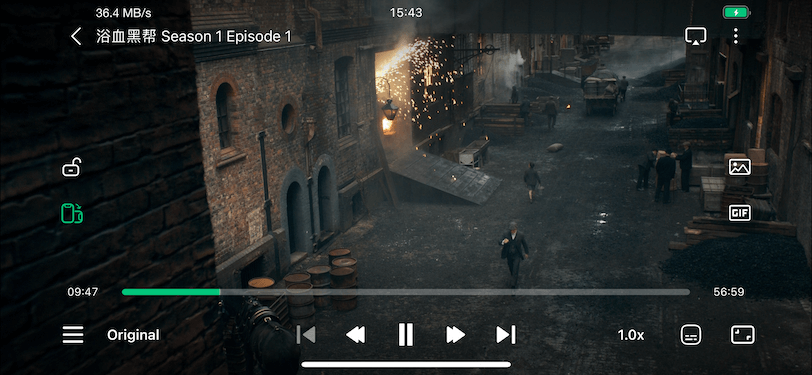 1.Snapshot: The icon in the middle on the right side, represented by a camera-style image, is used for taking snapshots. Clicking on it captures the current frame of the video. (This function can be used during both playback and pause.)
2.GIF: Clicking on the GIF icon starts recording a GIF image. Clicking again generates the GIF and saves it to the photo album. To close the GIF recording window, simply click anywhere blank on the screen. (If the video is paused while using the GIF function, it will automatically resume playing.)
3.Fit to Screen: Clicking on this option adjusts the video to fit the screen size.
1.Snapshot: The icon in the middle on the right side, represented by a camera-style image, is used for taking snapshots. Clicking on it captures the current frame of the video. (This function can be used during both playback and pause.)
2.GIF: Clicking on the GIF icon starts recording a GIF image. Clicking again generates the GIF and saves it to the photo album. To close the GIF recording window, simply click anywhere blank on the screen. (If the video is paused while using the GIF function, it will automatically resume playing.)
3.Fit to Screen: Clicking on this option adjusts the video to fit the screen size.